This extension controller cannot be used. Please remove it from the Wiimote.
Flipnote Player Volume
Quick Settings
Sound Effects Volume
Flipnote Player Volume
Wiimote Speaker Volume
Flipnote Player Scale
Digital Shift Button
Gallery View
Gallery View Thumbnail Scale
Sound Effects Volume
Adjust the volume of button sounds.
Classic Button Sounds
When enabled, the original Flipnote Studio sounds are used instead of the Flipnote Organizer versions.
Play Whistle Sound when Sorting
When enabled, a whistle sound will play when you begin organizing Flipnotes. If you are sensitive to high-pitched noises, it is generally recommended to turn this off.
Flipnote Player Volume
Adjust the volume of the Flipnote Player.
Flipnote Player Scale
Adjust the scale of the Flipnote Player.
Boost Flipnote Treble
Boosts the volume of higher audio frequencies while playing Flipnotes.
Flipnote Player Pixels Always Crisp
Pixels in the Flipnote Player will always be crisp at the cost of pixel distortion if using a scale between 1x and 2x or a non-standard zoom level.
Gallery View
When enabled, only the thumbnails of Flipnotes will be shown. If Gallery View is enabled, Shift for More Flipnote Details will be unavailable.
Gallery View Thumbnail Scale
Adjust the scale of the Gallery View thumbnails.
Display Icons Over Thumbnails in Gallery View
When enabled, Flipnotes will have icons shown on top of their thumbnails. Unless the icons are blocking thumbnails, it is generally recommended to keep this on.
Shift for More Flipnote Details
When holding shift or using the Digital Shift, extra details about Flipnotes will be displayed. It is recommended to keep this on. This cannot be used if Gallery View is enabled.
Digital Shift Button
For when the shift key is unavailable, or when it is preferable to have an auto-hold on shift. This cannot be used if Gallery View is enabled.
Sort Flipnotes Alphabetically by Filename
When enabled, Flipnotes will be sorted alphabetically based on the filename. To maintain parity with listing on the Organizer and on DSi, it is generally recommended to keep this off.
Display Stickers on Flipnotes
When enabled, Flipnotes will have stickers shown on top of their thumbnails. To maintain parity with listing on the Organizer and on DSi, it is generally recommended to keep this on.
Original Flipnote Thumbnail Resolution
When enabled, Flipnotes will use the built-in PPM thumbnails. These thumbnails are typically far less vibrant and are lower resolution, as such it is generally recommended to keep this off.
Shuffle Button
If disabled, the shuffle button will be hidden and shuffle mode will not be available.
Accessibility
Options intended to make usage more pleasant with changes to visuals, sound, etc.
Change Flipnote Player Colors
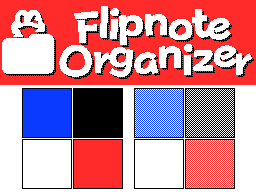
Modifications to red and blue for those who have sensitivites to certain colors or tones, or color deficiencies. These options may make some Flipnotes look awkward as they weren't designed with variable color tones in mind.

Use a Wiimote
Use a Wiimote to interact with the organizer one-handed, as well as get feedback such rumble. For information about using Wiimotes, visit flipnot.es/aboutorganizer
To recalibrate IR, try not to tilt your Wiimote too much and press A when one of your IR dots is within the boxes in each corner.
Select Wiimote Button in Quick Settings
When enabled, a Select Wiimote button will be added to Quick Settings.
Wiimote IR Camera Sensitivity
Adjust the sensitivity of the Wiimote IR camera. Higher settings may cause additional dots to appear due to sunlight, smartphones, or heat sources.
Wiimote Speaker Volume
Adjust the volume of the Wiimote speaker. Only RVL-CNT-01-TR Wiimotes support usage of the speaker.
Play Sounds Through TV When Wiimote Speaker is Muted
When enabled, any sounds meant to be played from the Wiimote speaker will be played through your device's audio output if the Wiimote speaker is muted or cannot be used such as with RVL-CNT-01 Wiimotes.
Wiimote Rumble
When enabled, the Wiimote will rumble when interacting with certain things.
Experimental
These features are in an unstable and experimental phase. They may be removed or break in the future.
View KWZs
When enabled, Flipnote Studio 3D KWZs will show up in the file system. KWZs may not support certain functions that PPMs do such as Color Accessibility, or Searchability.
A refresh must be done for this setting to take effect.
Dev Settings
These features are still in their early phases and have a low likelihood of adoption.
Fix Navbar to the Top
The navigation bar will always be fixed to the top of the screen. This may be useful when you want to access settings without returning to the top of the page.

To update the sort order of your Flipnotes, overwrite the dirmemo2.lst file in the folder you just sorted with the one downloaded by the Flipnote Organizer.
Please don't show this again
Search Flipnotes
Indexing Flipnotes, this may take some time depending on how many Flipnotes you have... ()
Search Filters
Locked
Spinoff
You can find your Flipnote folder at sdroot:/private/ds/app/4B4755xx
Your Flipnotes are not uploaded or stored; they are loaded locally.
A mouse must be used to select your Flipnote folder due to browser permissions.